
# MCP new
expert team enterprise
MCP (Model Context Protocol) is an open protocol that lets AI assistants (Claude Code, Codex, Cursor, and others) work with external systems. Once connected to Keitaro, an agent answers questions about statistics, analyzes logs, and, if the settings allow it, changes campaigns, streams, and offers.
The agent acts as the Keitaro user who connected it and sees exactly what that user's access rights allow.
TIP
MCP is available in the Expert, Team, and Enterprise editions. See Keitaro edition plans to compare editions.
# When to use MCP
- Questions about statistics in plain language. “Top 5 campaigns by ROI this week”, “Which countries give the best EPC for offer X”, “Compare yesterday's CR of two landing pages”.
- Finding problems. “Which campaigns have been losing money for three days in a row”, “Where has the bot share grown”, “What changed in traffic compared to yesterday”.
- Investigating missing conversions and postbacks. The agent reads the log of incoming postbacks (from an affiliate network to Keitaro) and outgoing ones (from Keitaro to a traffic source) and shows at which step the chain broke.
- Quick targeted edits (Edit mode only): pause or resume a campaign, clone a campaign, add or change a stream, create an offer.
# When MCP is not the right tool
- Bulk and recurring operations, integrations. “Pause all campaigns with ROI below −20% every morning” is a job for the Admin API or a script: they work predictably and without a language model.
- Tracker administration. Tracker settings, users, permissions, bot lists, and triggers are not available via MCP; domains are available as a read-only list.
- Exporting large amounts of data. Reports and logs are returned in pages (100 report rows and 50 log entries by default), while lists of campaigns, offers, landing pages, and other objects are returned in full. On a large account such responses quickly fill the model's context. For large exports, use report export or the Admin API.
- Actions where a mistake is costly. The model may misunderstand a request. In Edit mode, check what the agent is about to do before confirming.
# Capabilities
# Reading — in both modes
| Object | What the agent can do |
|---|---|
| Statistics | Build reports with any grouping, metrics, filters, and sorting; get totals for a period |
| Logs | Read the click log, conversion log, incoming postback log, and outgoing postback log |
| Campaigns | List of campaigns and full settings of a single campaign |
| Streams | Streams of a campaign and settings of a single stream, list of available stream actions and filters |
| Offers | List of offers and settings of a single offer |
| Landing pages, traffic sources, affiliate networks, domains, and groups | List only |
# Writing — Edit mode only
| Object | Create | Change | Delete |
|---|---|---|---|
| Campaign | Create, clone | Name, source, group, cost type and amount; pause and resume | Archive (can be restored) |
| Stream | Create | Name, type, schema, action, offers, landing pages, filters and their logic, weight, position, state, click collection, offer selection moment, comment | Archive (can be restored) |
| Offer | Create (redirect offer by URL only) | Name, URL, affiliate network, payout, group | Not available |
# Limitations
- Tracker settings and users are closed in any mode, even if the agent was connected by an admin. So the agent cannot switch on Edit mode for itself or extend its permissions.
- Landing pages, traffic sources, affiliate networks, domains, and groups are available as read-only lists.
- Not available via MCP:
- Creating or editing conversions.
- Updating costs.
- Bot lists, triggers, API keys.
- Error logs, audit logs.
- Viewing or restoring the archive.
- Deleting offers.
- Permanently deleting campaigns or streams.
- Campaign cost currency can be set via MCP only when the campaign is created. To change it later, use the Keitaro interface.
- When a stream is changed, the list of offers, landing pages, or filters is replaced entirely. The agent takes this into account, but before an edit it helps to ask the agent to show the current stream settings.
- User permissions always apply. If the user has no access to some campaigns or to logs, the agent will not see them either. Investigating postbacks requires access to logs.
- The access mode is one for the whole tracker and applies to all connected users (within each user's permissions).
- The client must support OAuth over Streamable HTTP. Claude Code, Codex, and Cursor support it.
# Requirements
- Expert, Team, or Enterprise edition.
- A domain with admin dashboard access turned on (the Domains tab).
- The domain opens over HTTPS with a valid certificate. Without it, AI clients will not connect: they accept HTTPS only. A self-signed certificate does not work.
# How to enable
MCP is turned on and the mode is chosen by an admin: only admins can open the MCP settings page.
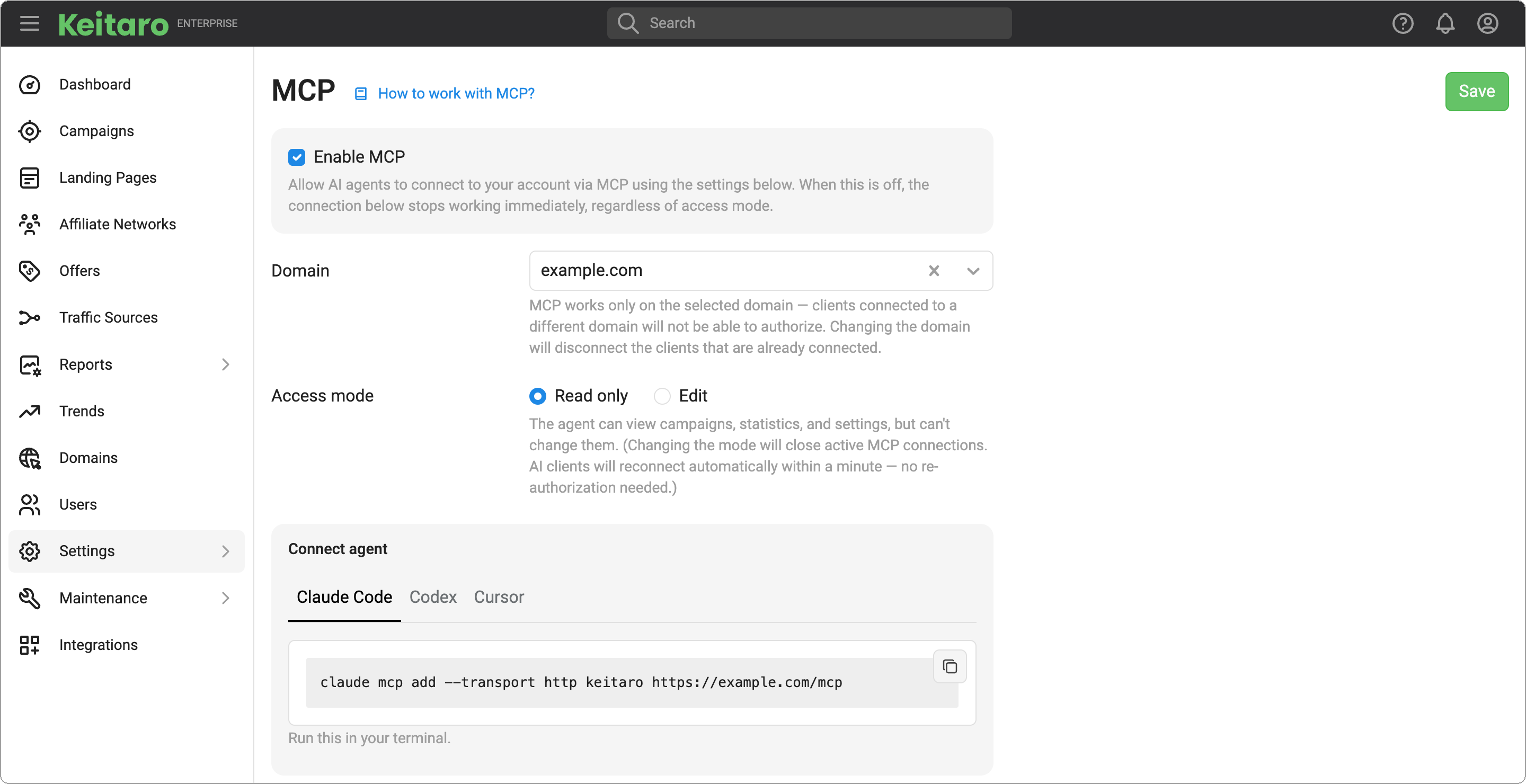
- Go to Settings → MCP.
- Check Enable MCP.
- In the Domain field, select the domain MCP will work on. Only domains with admin dashboard access are listed.
- Choose a value in the Access mode field.
- Read only (default) — the agent sees data but changes nothing. Write tools are not even shown to the agent.
- Edit — the agent can also create and change campaigns, streams, and offers.
- Click Save.
# How to connect an agent
The server address is https://MCP-domain/mcp, where the domain is the one selected in the MCP settings. Admins see ready-made commands on the Settings → MCP page in the Connect agent block. Other users get the address from an admin and connect with the same commands.
For Claude Code:
claude mcp add --transport http keitaro https://example.com/mcp
For Codex:
codex mcp add keitaro --url https://example.com/mcp
codex mcp login keitaro
codex mcp list
2
3
For Cursor, add the following to ~/.cursor/mcp.json (if the file already exists, add keitaro to the existing mcpServers):
{
  "mcpServers": {
    "keitaro": {
      "url": "https://example.com/mcp"
    }
  }
}
2
3
4
5
6
7
Then run the following commands in the terminal. The first command opens a browser to sign in. The second one shows the keitaro tools.
agent mcp login keitaro
agent mcp list-tools keitaro
2
Other MCP-compatible clients connect to the same address.
On the first request, a browser opens: sign in to Keitaro and confirm access. There is no need to create an API key beforehand — Keitaro issues a key named MCP automatically.
# Access management
Who can connect. Any tracker user. The agent gets that user's permissions. MCP cannot be denied to a single user — it can only be turned off entirely.
One key per user. If a user runs Claude Code and Cursor at the same time, both agents work through one
MCPkey.Do not name your own API keys
MCP. The tracker treats any key with this name as an MCP key. MCP limitations apply to it, and the key is deleted when MCP is turned off.How to disconnect agents. Delete the
MCPkey:- The user, in Profile → API keys.
- An admin, for any user, in Users → API keys of that user.
All agents of this user are disconnected at once; disconnecting just one of them is not possible. This is not a ban: the key is issued again at the next browser sign-in.
Turning MCP off (or disabling the admin dashboard on the MCP domain) immediately revokes the keys of all users. After MCP is turned back on, agents must be connected again.
Changing the MCP domain. The server address changes, so in each client remove the old connection and add a new one with the new address.
Changing the access mode closes current sessions. Agents reconnect on their own, no new sign-in is needed. After switching to Read only, writes are blocked by the tracker immediately, while the tool list in the client may take a few seconds to update.
Signing in again. If the agent has not accessed the tracker for more than 30 days, the next request will require signing in through the browser again.